> For the complete documentation index, see [llms.txt](https://docs.pirlmeet.com/llms.txt). Markdown versions of documentation pages are available by appending `.md` to page URLs; this page is available as [Markdown](https://docs.pirlmeet.com/pirlmeet/obs-studio/stream-video-from-r-h-to-youtube.md).

# Stream video from R-H to Youtube

### Stream key

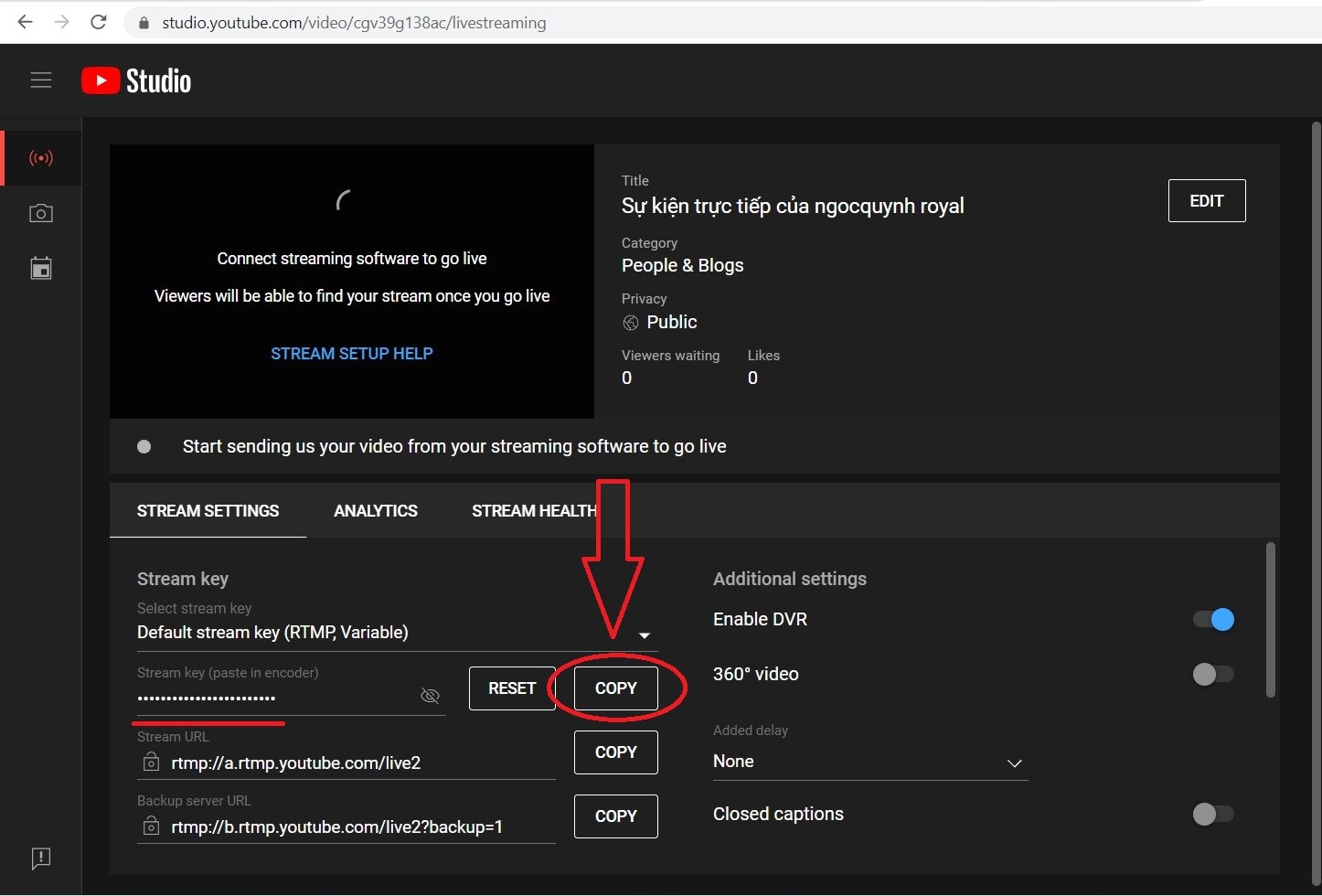
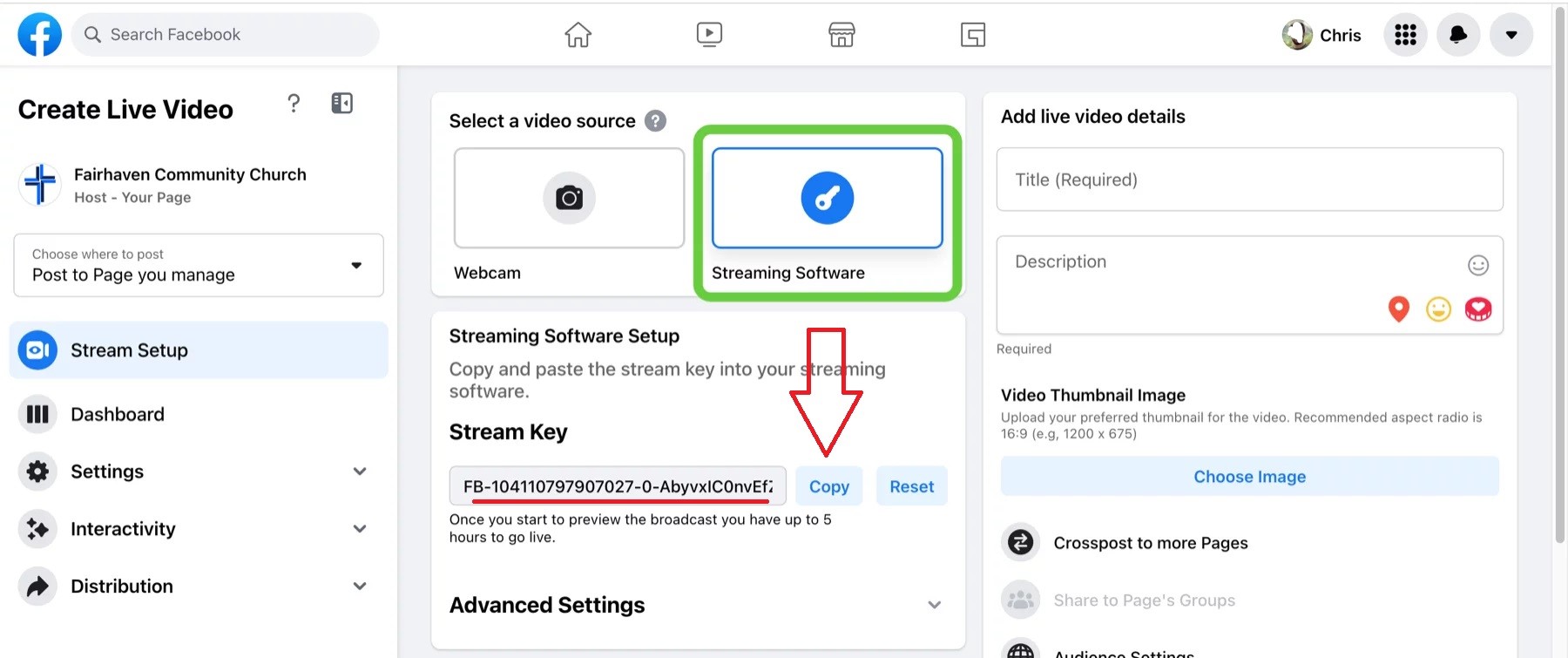
**Step 1:** You go to **Youtube studio , Facebook**, then you click **copy** "**stream key**"

<figure><img src="https://content.gitbook.com/content/VWZO7X0eh0CrOrfsUMp0/blobs/Z4VtPsxD754c7zQWUVLp/A%CC%89nh%20chu%CC%A3p%20ma%CC%80n%20hi%CC%80nh%202022-11-20%20152701.jpg" alt=""><figcaption><p>Youtube Studio</p></figcaption></figure>

<figure><img src="https://content.gitbook.com/content/VWZO7X0eh0CrOrfsUMp0/blobs/3t1Oblyn2oB6FHgsRavL/facebook-live--2.jpg" alt=""><figcaption></figcaption></figure>

###

### Setting OBS studio

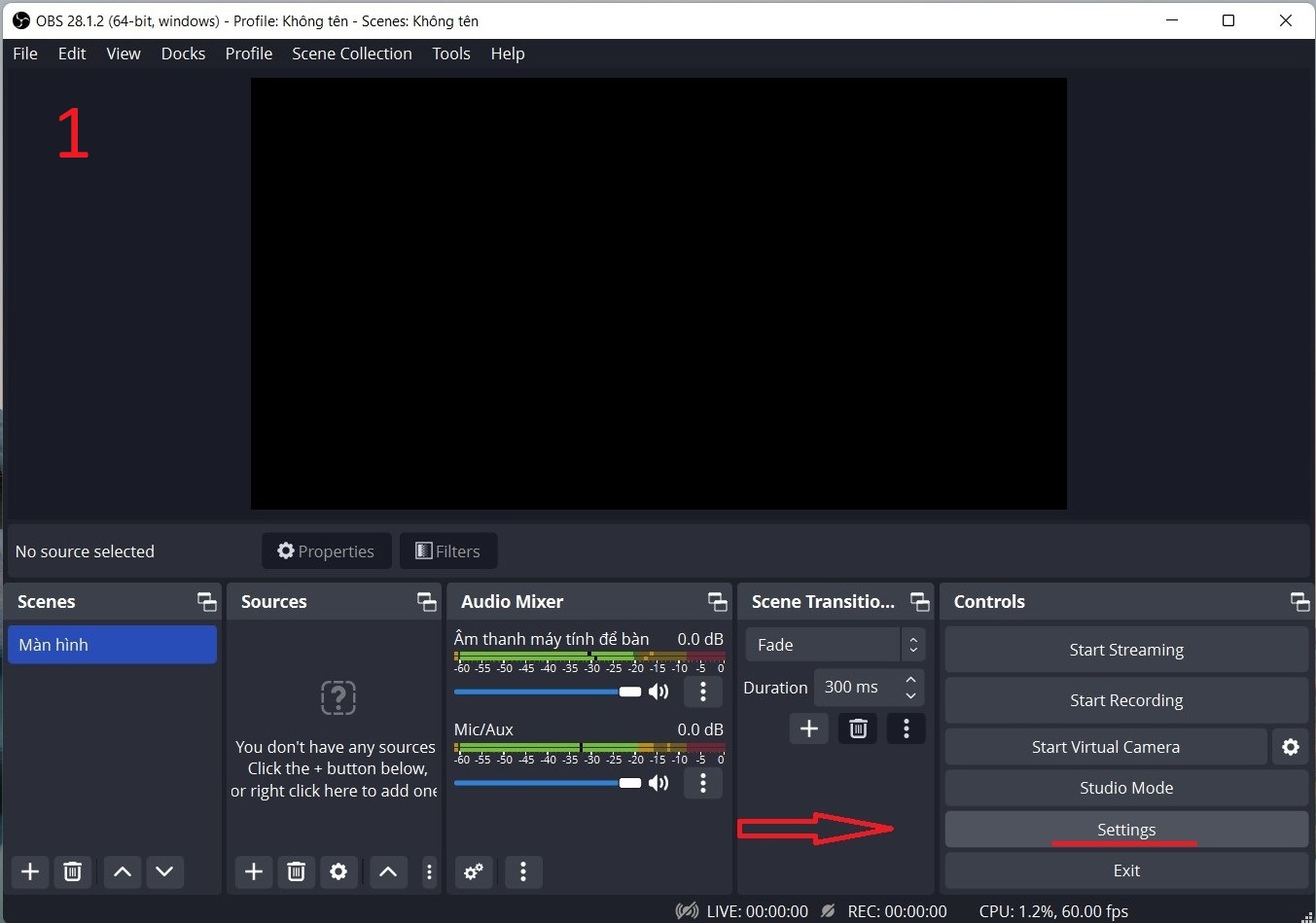
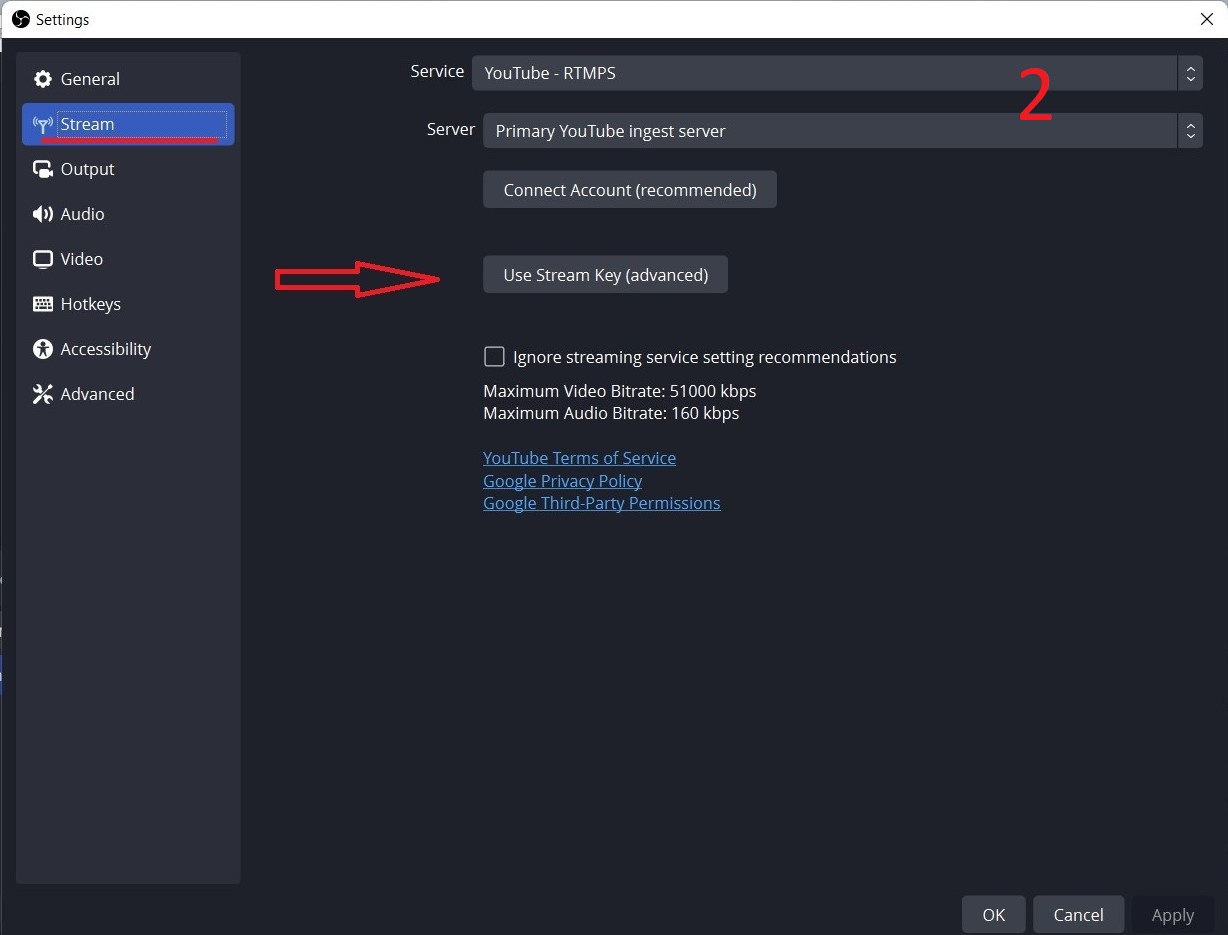
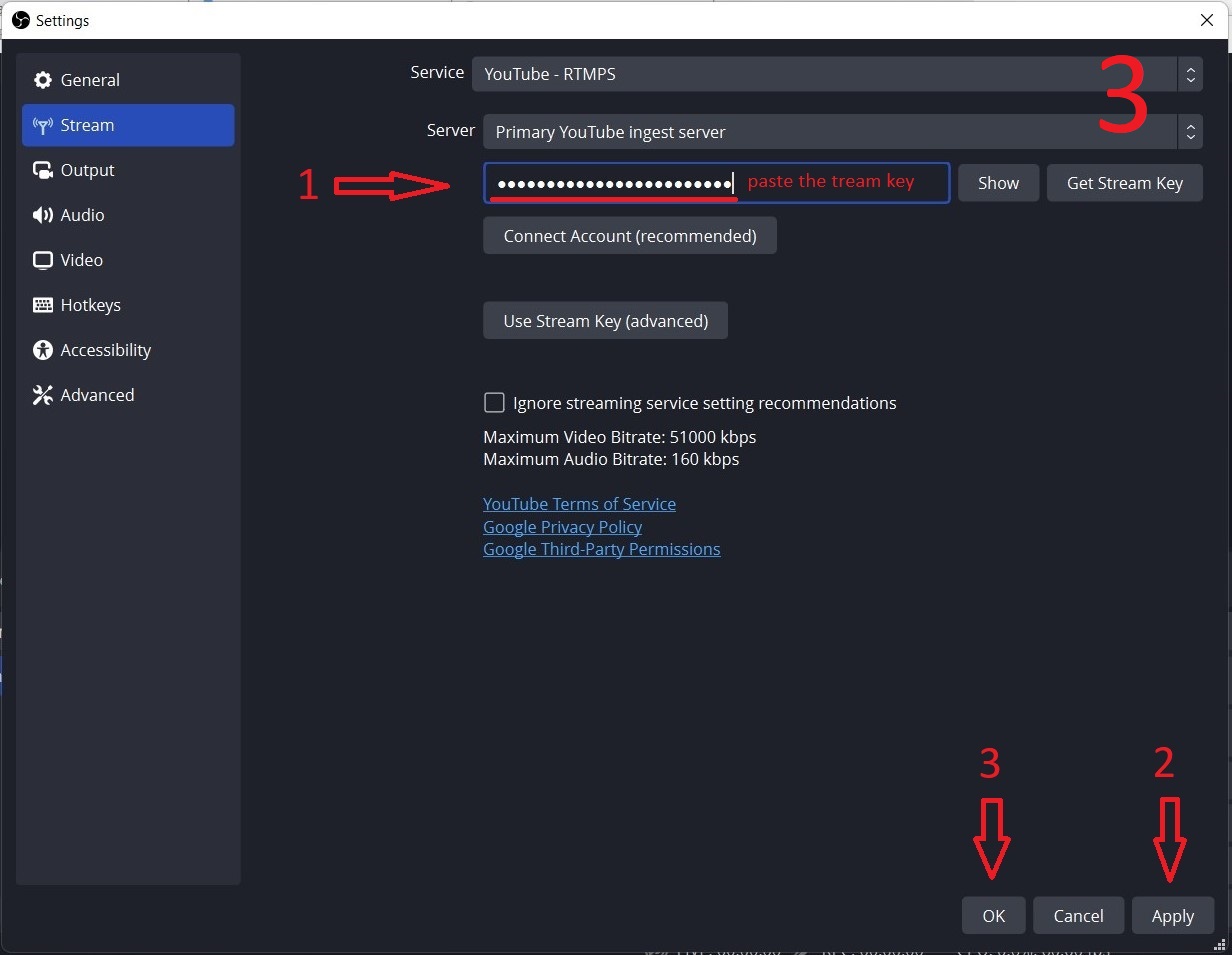
**Step 1:** you click "**setting**", then click "**stream**" and click "**user stream key**". Then you paste the code "stream key" click "**Apply**" and click "**OK**"

<figure><img src="https://content.gitbook.com/content/VWZO7X0eh0CrOrfsUMp0/blobs/t6UeUTfpGbUWsqIwPyLb/A%CC%89nh%20chu%CC%A3p%20ma%CC%80n%20hi%CC%80nh%202022-11-20%20153231.jpg" alt=""><figcaption></figcaption></figure>

<figure><img src="https://content.gitbook.com/content/VWZO7X0eh0CrOrfsUMp0/blobs/AGSSANjfsbrqfwDWd5vJ/A%CC%89nh%20chu%CC%A3p%20ma%CC%80n%20hi%CC%80nh%202022-11-20%20153252.jpg" alt=""><figcaption></figcaption></figure>

<figure><img src="https://content.gitbook.com/content/VWZO7X0eh0CrOrfsUMp0/blobs/v0e1aa5egVTL0vgeTwUj/A%CC%89nh%20chu%CC%A3p%20ma%CC%80n%20hi%CC%80nh%202022-11-20%20153709.jpg" alt=""><figcaption></figcaption></figure>

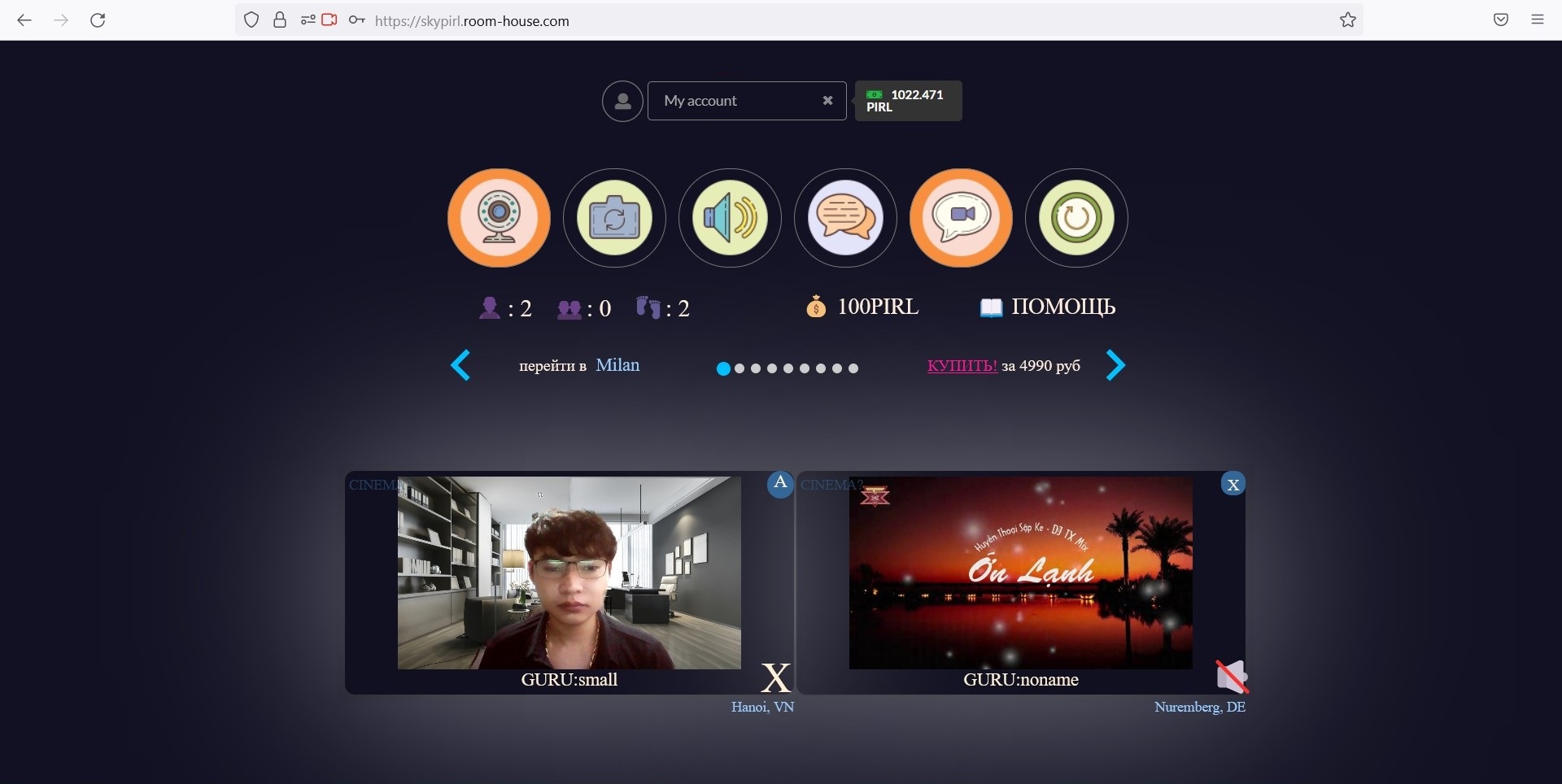
**Step 2:** You turn on your R-H meeting room browser

<figure><img src="https://content.gitbook.com/content/VWZO7X0eh0CrOrfsUMp0/blobs/lERvyF6zec2BT1R3RSnn/A%CC%89nh%20chu%CC%A3p%20ma%CC%80n%20hi%CC%80nh%202022-11-20%20155459.jpg" alt=""><figcaption></figcaption></figure>

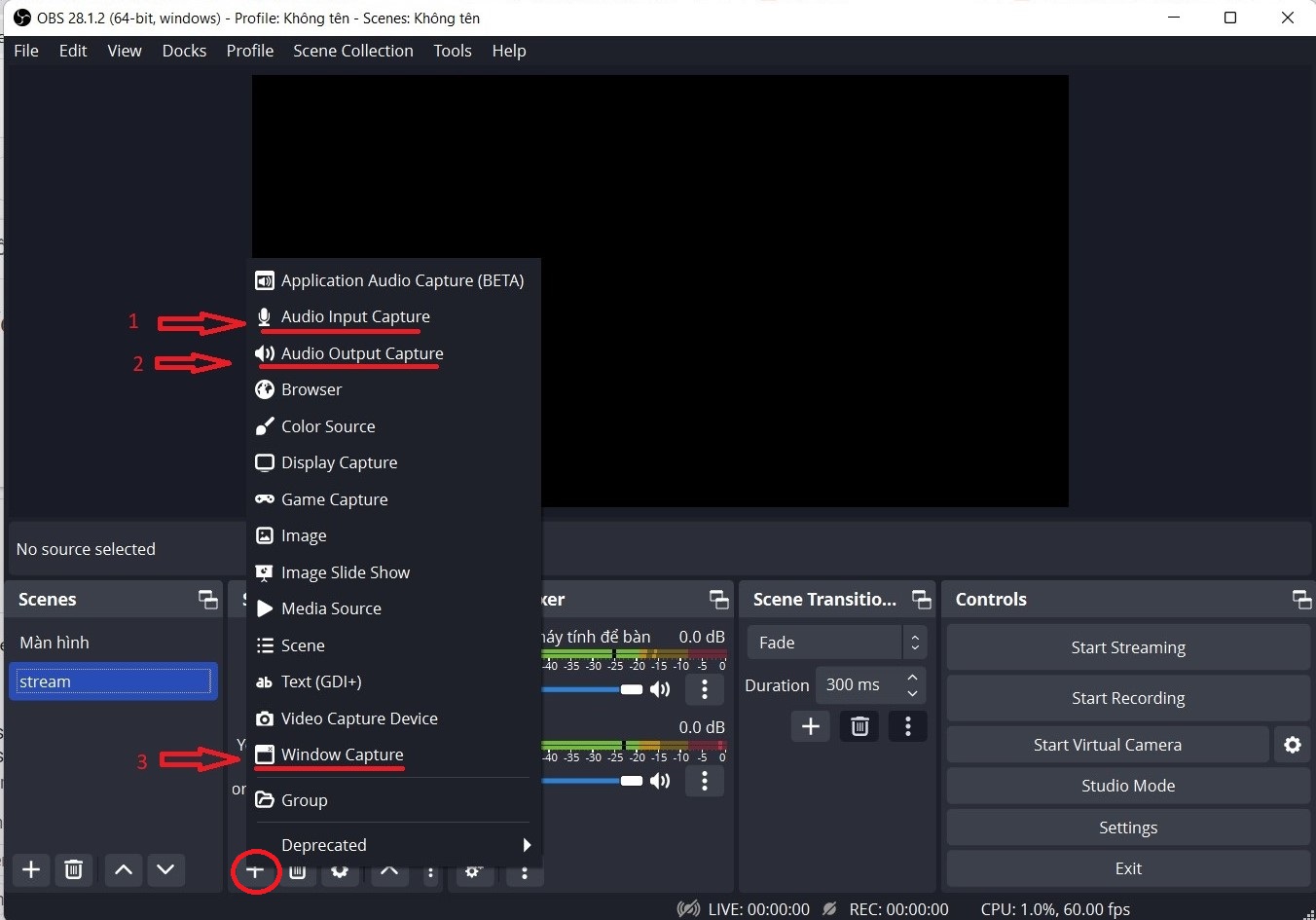
**Step 3:** you go to **OBS studio**, under "**Sources**" you click on "**+**" and select "**Audio**" and "**Window capture"**

<figure><img src="https://content.gitbook.com/content/VWZO7X0eh0CrOrfsUMp0/blobs/nReeEHWgxMLcvgdG3K9G/A%CC%89nh%20chu%CC%A3p%20ma%CC%80n%20hi%CC%80nh%202022-11-20%20160002.jpg" alt=""><figcaption></figcaption></figure>

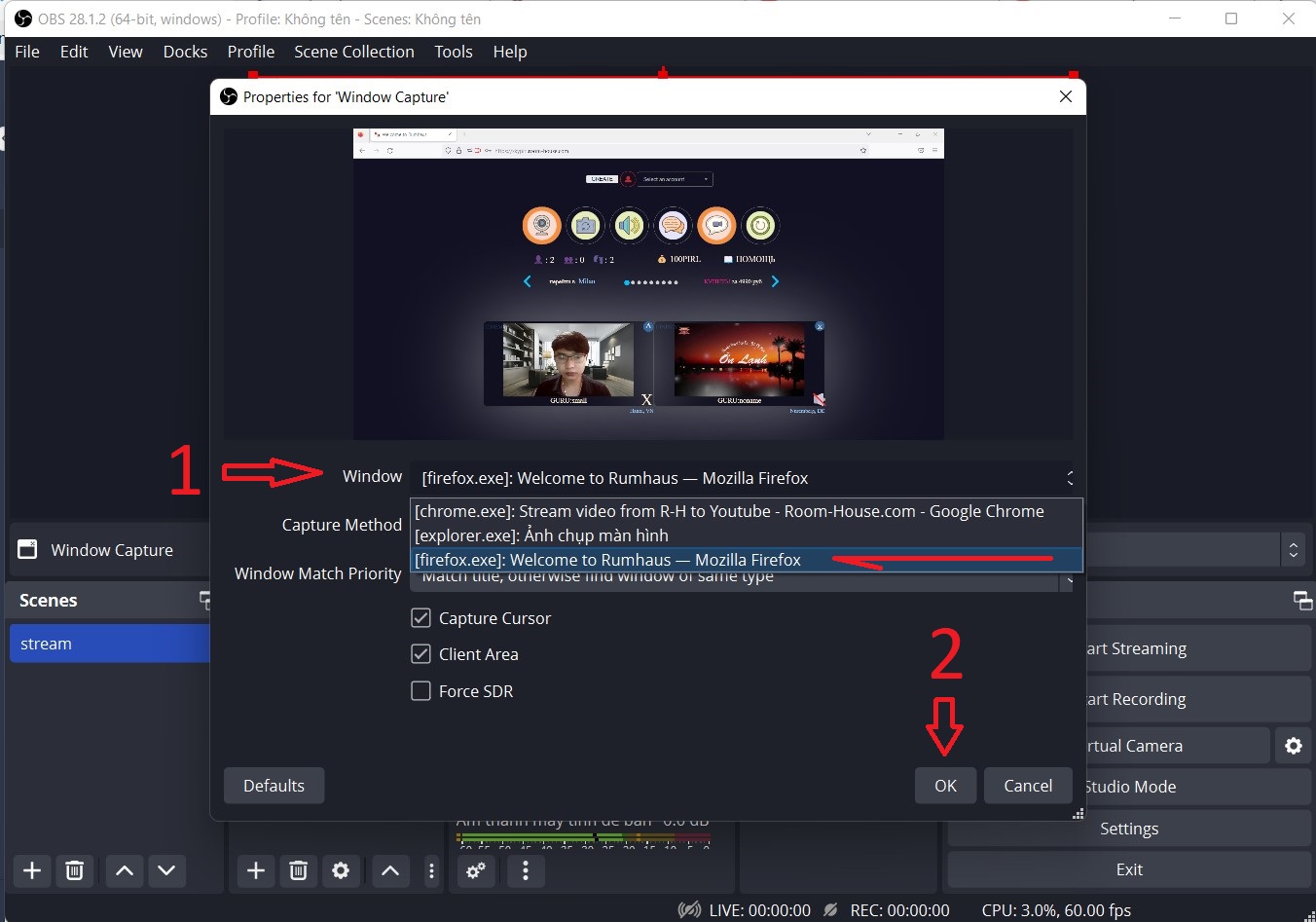
After you click on "**Window capture**" a new window will appear click on "**window**" and find your meeting room browser window.

<figure><img src="https://content.gitbook.com/content/VWZO7X0eh0CrOrfsUMp0/blobs/AdtO48saS5ODvnzPSqUi/A%CC%89nh%20chu%CC%A3p%20ma%CC%80n%20hi%CC%80nh%202022-11-20%20161027.jpg" alt=""><figcaption></figcaption></figure>

If you can't find the browser window, go back to the browser and open the meeting room, then exit "**window capture**" and click "**window capture**" then choose again

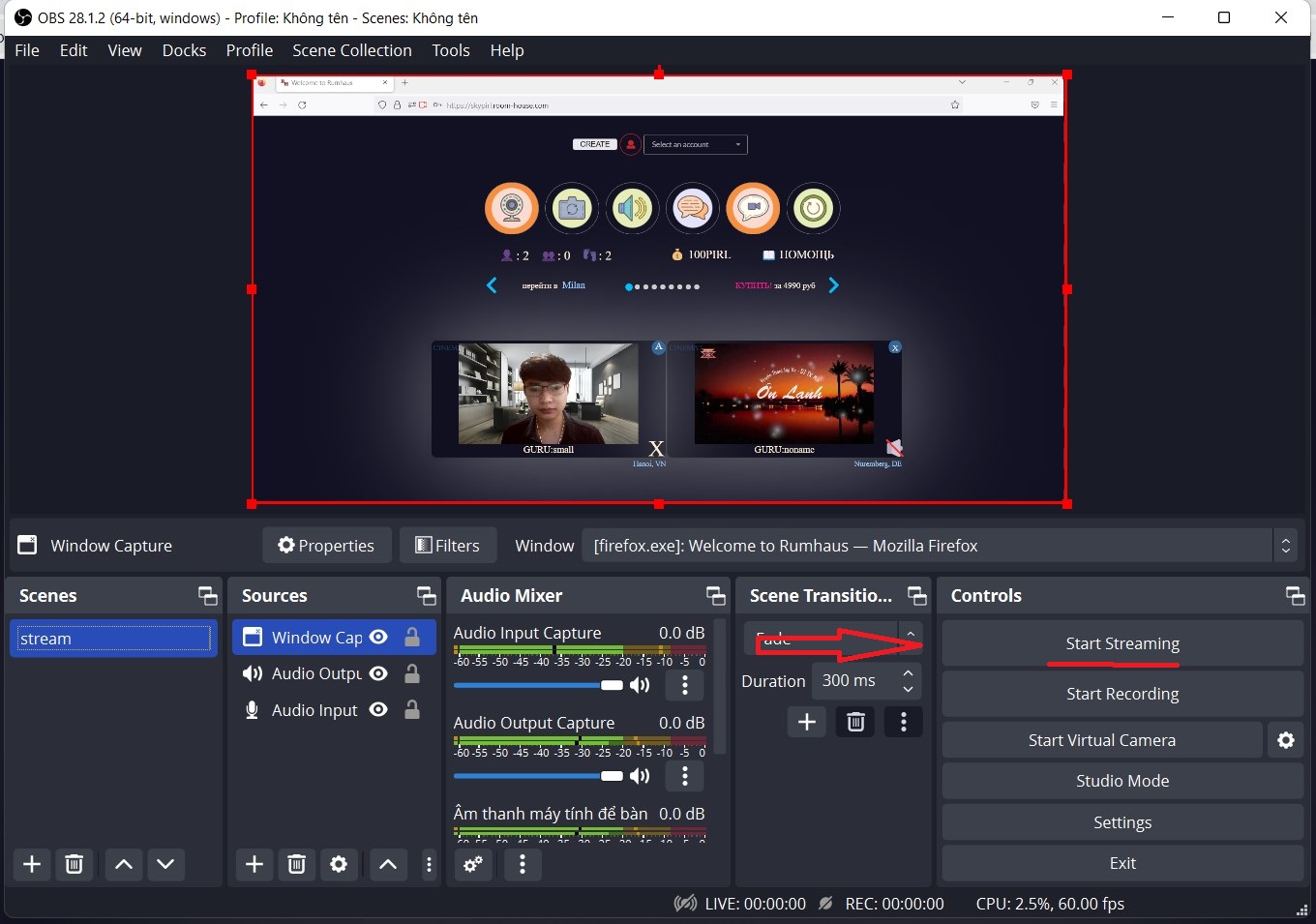
**Step 4:** After completing the setting, click "**Start Streaming**" to start streaming video

<figure><img src="https://content.gitbook.com/content/VWZO7X0eh0CrOrfsUMp0/blobs/aXitMlkX26MlnaqP7tar/A%CC%89nh%20chu%CC%A3p%20ma%CC%80n%20hi%CC%80nh%202022-11-20%20162043.jpg" alt=""><figcaption></figcaption></figure>

#### Room-House.com SkyPirl Pirl Rumhaus